Overview
Techne Clipper raises the level of drums, buses and full mixes by clipping the peaks that stand above the rest of the signal. A clipper changes the shape of the loudest parts of the waveform, sample by sample, instead of turning the whole signal down when a peak arrives the way a limiter does. Used gently, it can add level with little audible change. Pushed harder, it adds the density and edge that clipping is known for.
Clipper has three engines, chosen with the tabs at the top of the editor:
- CLIP shapes the whole signal with one curve, from a hard corner to a soft knee.
- BANDS splits the signal into four frequency bands and clips each one on its own, so the lows can be pushed harder than the highs.
- SPECTRAL looks at the sound frequency by frequency and turns down only the parts that rise over the threshold before a final wideband clip takes what is left.
Around the engines sit the stages that make clipping practical in a mix: a tilt before the clip (EDGE), transient controls after it (PUNCH, ATTACK, SUSTAIN), a look-ahead safety stage (WALL and its CATCH), an optional true-peak limiter (TP), and monitoring tools (MATCH, BYPASS, DELTA) for judging what the processing does.
This manual starts with a short quick start, then covers every control and display. The examples near the end are starting points to adjust by ear, not recipes.
Quick start
- Insert Clipper on a stereo or mono track, bus or the master. A new instance opens in COMPACT: the dial bar and a small level display. Click EXPAND in the header for the full display.
- Start with CLIP. It is selected in a new instance.
- Lower THRESHOLD until the history shows the tops of the hits being held down and GR (gain reduction) reads a few dB on the loudest hits. With LINK on (it is on by default), the output is raised by the same amount, so the clipped peaks stay at CEILING and the track gets louder as you lower THRESHOLD.
- Compare fairly. Switch MATCH on, then toggle BYPASS. MATCH holds the output at the input's loudness, so you hear what the clipping does to the sound rather than a level jump.
- Listen for the limit. Back off when transients go flat, the low end starts to buzz, or cymbals turn grainy. DELTA plays only what the processing removed, which makes the artefacts easy to hear.
- Try BANDS or SPECTRAL if CLIP distorts one part of the spectrum before it gets loud enough. See Choosing an engine.
- Before you bounce, switch MATCH off (or click its gain readout to keep its level in OUTPUT) and switch on TP if your delivery has a true-peak limit.
Choosing an engine
| CLIP | BANDS | SPECTRAL | |
|---|---|---|---|
| How it clips | One curve on the whole signal | Four bands, each clipped on its own, then summed | Turns down individual frequencies first, then one wideband clip |
| Main controls | THRESHOLD, SHAPE, SYMMETRY, EDGE, DETAIL | THRESHOLD, each band's DRIVE and SHAPE, the three split frequencies | THRESHOLD, GATE, ATTACK, RELEASE, ADAPT, WINDOW, TILT, DEPTH |
| Added latency | None beyond the shared stages | None beyond the shared stages | One analysis window (see Latency) |
| Reach for it when | You want a fast, predictable clip on a drum, a bus or a mix | One frequency range (often the kick or sub) needs more clipping than the rest | Dense material distorts in one place when clipped wideband, or you want the most control over where reduction happens |
Every control is shared between the engines: switching engine never changes a value. Controls an engine doesn't use are drawn dimmed and still respond, so their settings are ready when you switch back. Moving between CLIP and BANDS is a 10 ms crossfade. Moving into or out of SPECTRAL briefly fades the audio out and back in, because it changes the plugin's latency.
The editor
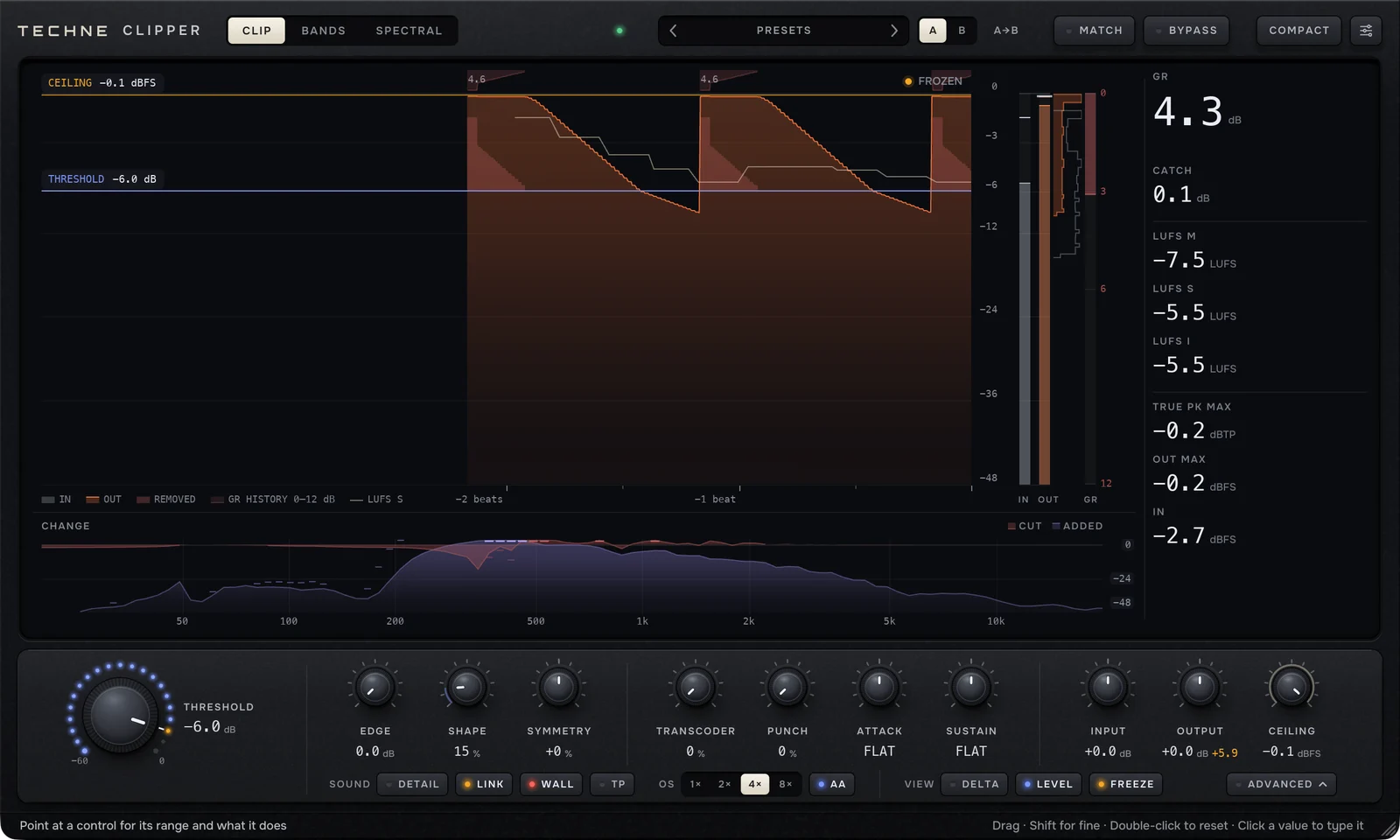
From top to bottom, the expanded editor has:
- The header: engine tabs, the license light, presets, A/B, MATCH, BYPASS, COMPACT and the settings button.
- The level history: the input and output over time, with the THRESHOLD and CEILING lines. The meter bank and the readings column sit to its right.
- The lane: a frequency display whose contents depend on the engine.
- The ADVANCED drawer, when open: each engine's extra controls and the CATCH.
- The dial bar: THRESHOLD and ten smaller dials, then a row of keys for SOUND, OS and VIEW.
- The info line: what the control under the pointer does, its value and range, and how to work it.
COMPACT and EXPAND
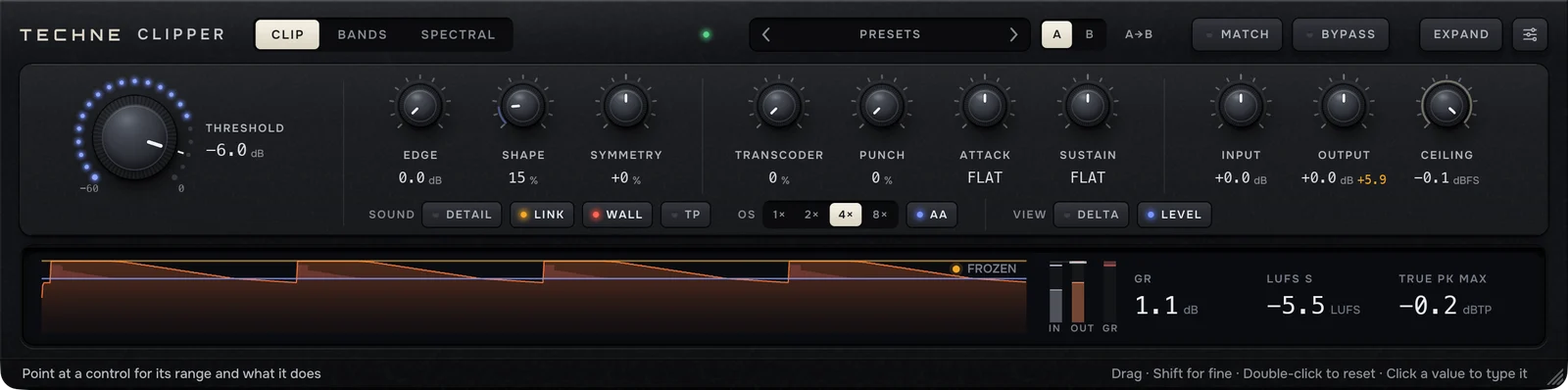
COMPACT folds the editor down to the dial bar and a small display with the IN, OUT and GR meters and three readings: GR, LUFS S and TRUE PK MAX. EXPAND brings back the full display. A new instance opens in COMPACT.
The lane, the readings column, FREEZE and the ADVANCED drawer exist only in the expanded editor. Their settings keep working in COMPACT, but there is nothing on screen to change them with, so expand the editor to reach the CATCH, the BANDS drive and shape dials, and SPECTRAL's WINDOW, TILT, SYNC and DEPTH. In SPECTRAL this also applies to TRANSCODER, PUNCH, ATTACK and SUSTAIN, which move into the drawer in that engine.
Working the controls
| Action | Result |
|---|---|
| Drag a dial up or down | Changes the value; about 200 pixels covers the full range |
| Hold Shift (or ⌘ on macOS, Ctrl on Windows) while dragging | Fine adjustment |
| Double-click a dial | Resets it to its factory default |
| Mouse wheel or two-finger swipe over a dial | Steps the value; SETTINGS → WHEEL sets the direction |
| Click a dial's value | Opens a field to type a value; Enter or Tab confirms, Esc cancels |
| Drag the THRESHOLD or CEILING line on the history | Sets that control directly |
| Click a meter, OUT MAX or TRUE PK MAX | Resets the peak readings |
| Click a LUFS reading | Restarts the integrated loudness (LUFS I) |
| Drag the window's edge or corner | Scales the whole editor |
Every dial, and every key that changes the sound or the monitoring, is a host parameter, so it can be automated and the host's undo records it. While you type a value or have a panel open, the editor keeps the keyboard; the only keys it uses are Esc, Tab and Enter.
The info line along the bottom names the control under the pointer, shows its value and range, and explains what it does. When nothing is under the pointer it reads: Drag · Shift for fine · Double-click to reset · Click a value to type it.
The header
| Control | What it does |
|---|---|
| CLIP · BANDS · SPECTRAL | Selects the engine. |
| DEMO, or a light | DEMO while the plugin is unactivated; a green light once it is licensed. Click either to open the license card. See The demo and activation. |
| ‹ PRESETS › | Click the name for the preset browser; the arrows step through the presets. An asterisk after the name means the sound has changed since that preset was loaded. |
| A · B | Two slots for comparing settings. Switching stores the sound you leave in its slot and recalls the other. |
| A→B (or B→A) | Copies the live slot over the other one. |
| MATCH | Holds the output at the input's loudness. See MATCH, BYPASS and DELTA. |
| BYPASS | Crossfades to the unprocessed input, delayed to line up with the processed signal. |
| COMPACT / EXPAND | Folds or unfolds the editor. |
| Settings (the sliders button) | Opens SETTINGS. See Settings. |
The level history
The large display shows the last few beats (or seconds) of audio, newest at the right.
- IN is the signal arriving at the clipper, after INPUT, TRANSCODER and EDGE. OUT is the final output.
- LEVEL (on by default) draws IN and OUT as peak envelopes on a dB scale from 0 dBFS down to −48 dB. With LEVEL off, the display draws the waveform instead.
- REMOVED (CLIP only) marks what the clip and the CATCH took off each peak.
- GR HISTORY hangs from the top edge and shows gain reduction on a 0–12 dB scale. In CLIP and SPECTRAL the largest reductions are labelled with their value in dB above each hit.
- LUFS S is a thin line through the output showing short-term loudness (LEVEL view only).
- The THRESHOLD line marks the clip level. The CEILING line appears whenever something holds the output to CEILING (WALL, TP or LINK), labelled in dBFS, or dBTP with TP on. Drag either line to set it.
With SETTINGS → SCOPE → SYNC on (the default), the display spans 4 beats at the host's tempo; the other choices are 1/4, 2, 8 and 16 beats. With SYNC off it spans 2 seconds. Without a tempo from the host it assumes 120 BPM.
FREEZE stops the history so you can read a hit. The display also holds where the host transport stops, and lets go when playback resumes or new sound arrives. While the picture stands still, pointing at it shows a card with IN, OUT and GR at that moment.
Meters and readings
The meter bank beside the history shows IN and OUT peak meters on the same scale as the history, and a GR meter on its own 0–12 dB scale. A small mark on the OUT meter shows the highest output peak since the last reset. Between the OUT and GR meters, a narrow histogram shows how the output's level was distributed over the visible window; a pile at the top means the clip is working hard.
The readings column (expanded editor only):
| Reading | What it measures |
|---|---|
| GR | Gain reduction from the clip and the CATCH, held briefly so peaks are readable. OUTPUT, LINK and MATCH don't affect it. |
| BIN · HITS (SPECTRAL) | BIN is the deepest reduction on any single frequency right now; HITS is how much of the output came through the short analysis path for transients. |
| CATCH | How much the CATCH is holding down right now. It turns red above 0.5 dB. |
| LUFS M, LUFS S, LUFS I | Momentary (400 ms), short-term (3 s) and integrated loudness of the output. Click any of them to restart LUFS I. |
| TRUE PK MAX | The highest true peak of the output since the last reset, measured with a standard (ITU-R BS.1770) true-peak meter. It turns red if the output went more than 0.05 dB over CEILING. |
| OUT MAX | The highest sample peak of the output since the last reset. |
| IN | The input peak right now, before the clip. |
TRUE PK MAX and OUT MAX also reset when you switch TP or MATCH.
The lane
The lane under the history shows frequency from left to right. Its contents depend on the engine:
- CLIP: CHANGE, what the clip did to each frequency (see Reading CHANGE).
- BANDS: the input and output spectra, the four bands, their DRIVE values and the split points (see BANDS).
- SPECTRAL: three views, DETECTOR, ADAPT and CHANGE, plus the DEPTH of each region (see SPECTRAL).
On the lane, drag a value or handle to change it. Shift, ⌘ or Ctrl gives fine control, and a double-click resets.
The dial bar
The dial bar is the same in every engine except for its middle four dials, which belong to the engine in SPECTRAL.
| Control | Range | Default | What it does |
|---|---|---|---|
| THRESHOLD | −60 to 0 dB | 0.0 dB | The clip level. Peaks above it are held down. The ring of lights around the dial shows the level reaching the clipper: blue below THRESHOLD, amber at or above it. |
| EDGE | 0 to 6 dB | 0.0 dB | Tilts the signal before the clip around 600 Hz: the highs go up and the lows go down by this amount. |
| SHAPE | 0 to 100 % | 15 % | The knee of the clip curve: 0 % is a hard corner, higher values round it. Not used in BANDS. |
| SYMMETRY | −100 to +100 % | 0 % | Makes the clip asymmetric, so one side of the waveform is clipped before the other. |
| TRANSCODER | 0 to 100 % | 0 % | A phase rotator before the clip. It spreads lopsided peaks out in time so less of them is clipped. It doesn't change the frequency balance. |
| PUNCH | 0 to 100 % | 0 % | Raises the threshold for the first few milliseconds of each hit, so the front of a transient passes the clip. |
| ATTACK | −100 to +100 % | FLAT | After the clip: positive values bring back the front of each hit, negative values soften it. |
| SUSTAIN | −100 to +100 % | FLAT | After the clip: positive values fill out the tail after each hit, negative values tighten it. |
| INPUT | −24 to +24 dB | 0.0 dB | Gain before everything else. |
| OUTPUT | −24 to +24 dB | 0.0 dB | Gain after the clip. With LINK on, LINK's makeup is shown beside it in amber. |
| CEILING | −12 to 0 dB | −0.1 dBFS | The output ceiling used by WALL, TP and LINK. Dimmed when all three are off. |
In SPECTRAL, the middle four dials become GATE, ATTACK, RELEASE and ADAPT (see SPECTRAL), and TRANSCODER, PUNCH and the transient ATTACK and SUSTAIN move to ADVANCED → TRANSIENT. They keep working in SPECTRAL.
Lowering THRESHOLD to −60 dB, the bottom of its range, silences the clipped signal. Keep it above the bottom of the range.
THRESHOLD and the level you hear
THRESHOLD sets how much is clipped; it doesn't set the output level on its own. With LINK on, Clipper adds CEILING − THRESHOLD to the output (shown in amber next to OUTPUT), so the clipped peaks land on CEILING and the level you hear rises as you lower THRESHOLD. With LINK off, lowering THRESHOLD makes the output quieter, and you set the level yourself with OUTPUT.
EDGE
EDGE changes the tone going into the clipper: with EDGE at 3 dB the highs are 3 dB louder and the lows 3 dB quieter. A clipper reacts most to whatever is loudest, which is often the sub. Tilting the input moves some of the clipping from the low end to the upper frequencies, so a heavy low end is flattened less. The tilt stays in the output, so expect a brighter result as you raise it.
SHAPE and SYMMETRY
At 0 % SHAPE clips with a hard corner, the most aggressive sound. Higher values start the clipping gradually below THRESHOLD and round the corner. The audible difference is subtle on most material, a fine adjustment rather than a character switch.
SYMMETRY clips one half of the waveform earlier than the other, which adds even harmonics. Asymmetric clipping also leaves a DC offset in the output, and Clipper does not remove it. At large SYMMETRY values, put a high-pass or DC filter after Clipper if your chain doesn't already have one.
Transient controls
PUNCH and the transient ATTACK and SUSTAIN shape the hit around the clip:
- PUNCH works before the clip. It lets the first moments of a hit through above THRESHOLD, so the click of a kick or the crack of a snare is held by the CATCH (with WALL on) instead of being clipped.
- ATTACK and SUSTAIN work after the clip. ATTACK boosts or cuts the onset of each hit; SUSTAIN boosts or cuts the tail after it. Together they change the level by at most 12 dB at any moment. At 0 they read FLAT and do nothing.
Because ATTACK and SUSTAIN come after the clip, raising them adds level the clip has already removed; WALL and TP still hold the output to CEILING.
The keys
Below the dials, one row of keys:
| Key | Default | What it does |
|---|---|---|
| DETAIL | Off | Splits off the highs above 2.5 kHz, clips only the lows and adds the highs back. Not used in BANDS. |
| LINK | On | Adds CEILING − THRESHOLD to the output so clipped peaks land on CEILING. |
| WALL | On | Holds every output sample at or under CEILING, using the look-ahead CATCH and a final clamp. |
| TP | Off | A final true-peak limiter that holds the reconstructed output under CEILING minus the TP MARGIN. Adds latency. |
| 1× · 2× · 4× · 8× | 4× | Oversampling: the clip runs at this multiple of the sample rate. |
| AA | On | Anti-aliasing for the clip. |
| DELTA | Off | Plays only what the processing removed. |
| LEVEL | On | Peak envelopes on a dB scale on the history; off shows the waveform. |
| FREEZE | Off | Stops the history (expanded editor only). |
| ADVANCED | Closed | Opens the drawer with the engine's extra controls and the CATCH (expanded editor only). |
DETAIL
DETAIL keeps the high end out of the clipper. On a heavily clipped drum bus it preserves the air on cymbals and hats, at the cost of letting the highs' own peaks past THRESHOLD. With WALL on, the CATCH and the final clamp still hold them to CEILING. In CLIP, the lane marks the 2.5 kHz split with a dashed line.
Oversampling and AA
Clipping creates harmonics. Some of them land above half the sample rate and fold back down as inharmonic tones (aliasing), which sounds harsh and grainy in the highs. Oversampling runs the clip at a higher rate so fewer harmonics fold back. AA adds a smoother clip calculation and steep filters around it; it is on by default and works at 2× or higher, so with AA on, 1× actually runs at 2×.
Higher settings sound cleaner on bright, heavily clipped material and cost more CPU and latency. 4× with AA on is the default. Changing either one restarts the processing for a moment (see Latency).
CLIP

CLIP is one clip curve applied to the whole signal (or only below 2.5 kHz with DETAIL on). Its sound comes from THRESHOLD, SHAPE and SYMMETRY, the tone of what it receives (EDGE, TRANSCODER) and the transient controls around it.
A good way in:
- Set THRESHOLD by watching GR and listening. Start with a few dB of reduction on the loudest hits and go further only while it still sounds right.
- Leave SHAPE near the default for a firm clip, or lower it for a harder, brighter edge.
- If the low end distorts first, raise EDGE a little, or switch to BANDS or SPECTRAL.
- If hits lose their snap, try PUNCH first, then the transient ATTACK.
Reading CHANGE

CHANGE (the lane in CLIP, and one of SPECTRAL's three views) compares what goes into the clip with what comes out, frequency by frequency, averaged over the last 0.3 seconds:
- CUT hangs from the 0 dB line. It shows how much the clip stage turned each frequency down. A rise above the line means a frequency came out louder.
- ADDED rises from the bottom. It shows energy in the output that wasn't in the input at that frequency: the harmonics and intermodulation that clipping creates.
- Short dashes mark the deepest cut and the largest addition of the last moment. Dimmed columns are too quiet for the reading to be reliable.
CHANGE measures the clip stage itself, before OUTPUT, so turning the output up or down doesn't change it. It holds its last reading while BYPASS or DELTA is on.
BANDS
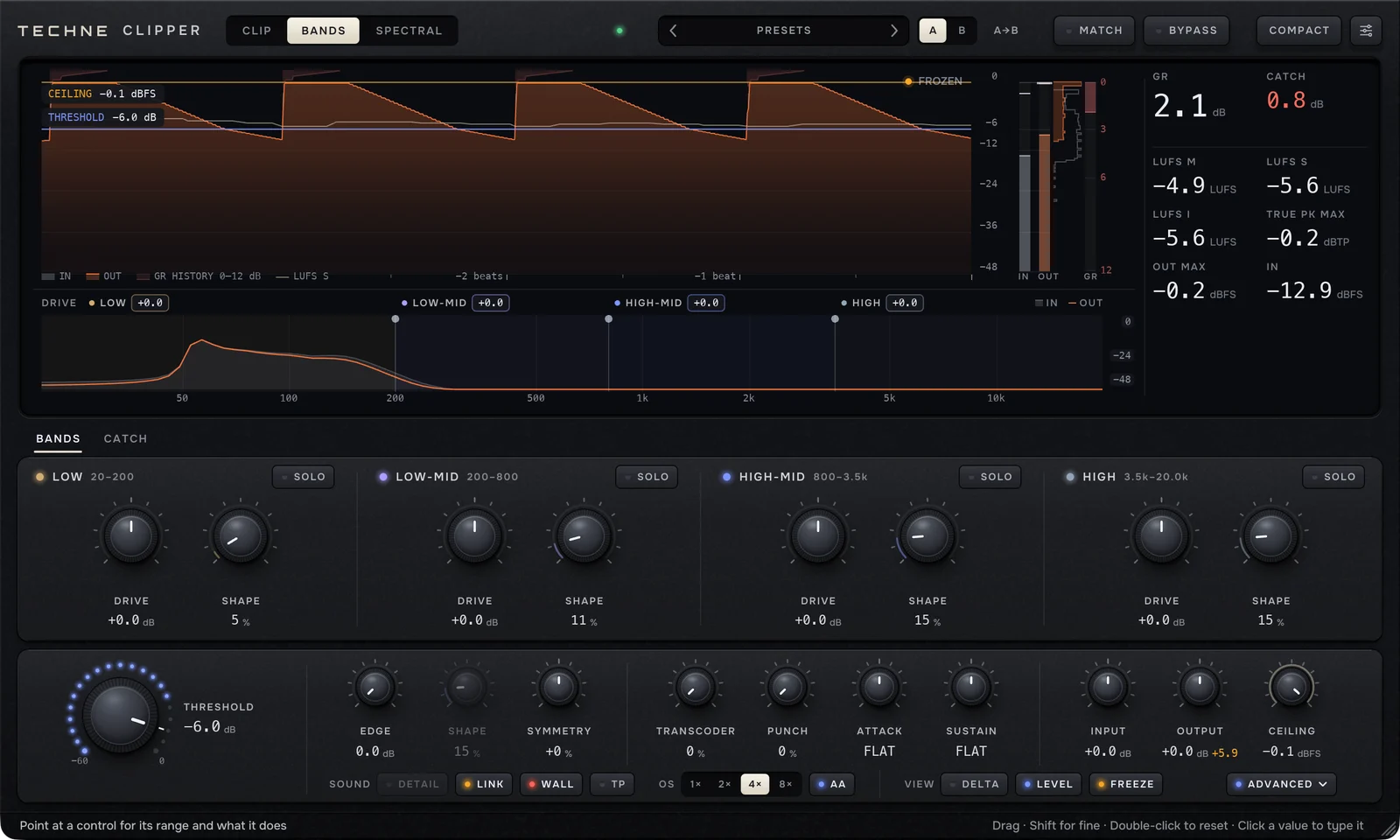
BANDS splits the signal into four bands, LOW, LOW-MID, HIGH-MID and HIGH, clips each band at THRESHOLD and adds them back together. Because each band is clipped on its own, a loud kick can be clipped hard in the low band while the cymbals in the high band pass untouched.
| Control | Range | Default | Where |
|---|---|---|---|
| Split frequencies (3) | 40 Hz to 16 kHz | 200 Hz, 800 Hz, 3.5 kHz | Drag the handles on the lane |
| DRIVE (per band) | −12 to +12 dB | 0.0 dB | The pills on the lane, or ADVANCED → BANDS |
| SHAPE (per band) | 0 to 100 % | 5 %, 11 %, 15 %, 15 % | ADVANCED → BANDS |
| SOLO (per band) | On / off | Off | ADVANCED → BANDS, or click a band on the lane |
- DRIVE is the gain into a band's clipper: more DRIVE clips that band harder. It isn't compensated afterwards, so it also changes that band's level in the output. Lowering a band's DRIVE clips it less and makes it quieter.
- Each band's SHAPE replaces the main SHAPE, which is dimmed in BANDS. SYMMETRY, PUNCH, the transient controls and everything before the split (INPUT, TRANSCODER, EDGE) are shared by all four bands.
- SOLO plays only the soloed bands (several can be soloed at once). Loading a preset or switching A/B turns the solos off.
- Splits stay at least a third of an octave apart.
- DETAIL has no effect in BANDS, since each band is clipped whole.
The crossover is a standard Linkwitz-Riley design whose bands add back up to a flat frequency response when nothing is clipped. Near a split, both neighbouring bands carry part of the signal, so moving a split changes which band clips a sound that sits on it. If one instrument sits right on a split, move the split away from it and listen to whether its clipping becomes more even.
The lane shows the input spectrum behind and the output spectrum over it, each band's gain reduction as a shadow from the top, and each band's DRIVE in the caption. Drag a DRIVE pill up for more drive, drag the split handles sideways, and click a band to solo it. BANDS does not label reduction values on the history.
SPECTRAL
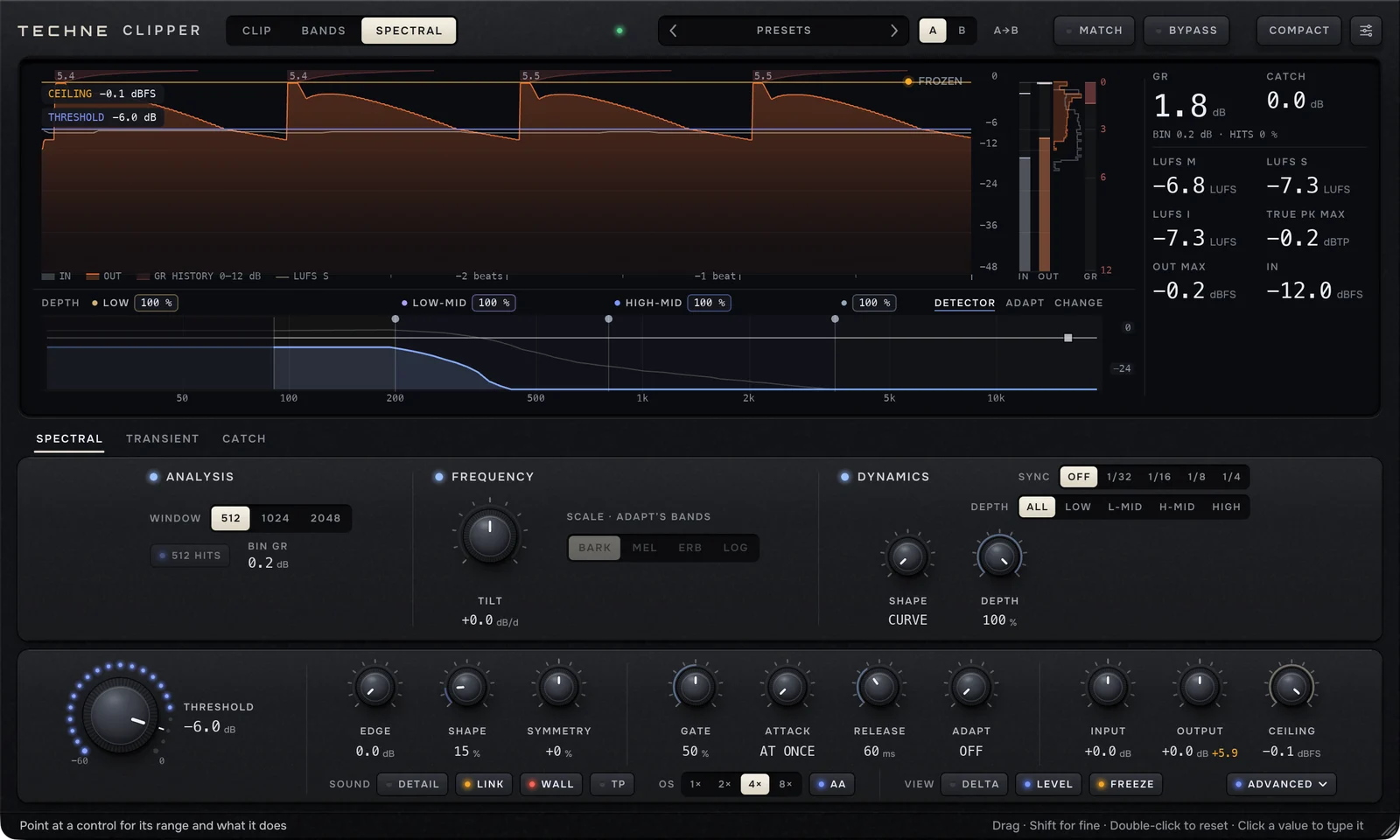
SPECTRAL works in two stages. First it analyses the sound in short overlapping windows, splitting each one into many narrow frequency bins, and turns down only the bins that rise over their ceiling. The ceiling starts at THRESHOLD and can be sloped with TILT and moved band by band with ADAPT. Turning a bin down changes only its level, never its phase. Then the same wideband clip used by CLIP, with THRESHOLD, SHAPE, SYMMETRY, DETAIL and PUNCH, catches whatever is still over THRESHOLD.
The result: when one loud element pushes the mix over THRESHOLD, the first stage can turn that element's frequencies down while leaving the rest of the spectrum alone, instead of clipping the whole waveform. The wideband stage behind it keeps the output under control either way.
The dial bar in SPECTRAL
| Control | Range | Default | What it does |
|---|---|---|---|
| GATE | 0 to 100 %, then OFF | 50 % | Decides which moments count as a hit (a transient). Hits skip the first stage, or go through the short 512 HITS analysis instead, so transients aren't smeared by a long window. Lower values treat more moments as hits; at the top it reads OFF and nothing counts as a hit. |
| ATTACK | AT ONCE to 40 ms | AT ONCE | How quickly a bin's level is turned down once it goes over. |
| RELEASE | instant to 1000 ms | 60 ms | How quickly a bin comes back up. Bins that are held down for a while recover more slowly. Dimmed while SYNC is on. |
| ADAPT | OFF to 6 dB | OFF | Lets the ceiling move band by band: down for the bands causing the overshoot, up for bands that aren't, by up to this amount. |
ADVANCED → SPECTRAL
| Control | Choices or range | Default | What it does |
|---|---|---|---|
| WINDOW | 512 · 1024 · 2048 | 512 | The analysis length in samples at 44.1 and 48 kHz (twice as many at 88.2 and 96 kHz, four times at 176.4 and 192 kHz, so the time is the same). Short windows react quickly with little smearing before a transient; long windows separate frequencies more finely, especially in the low end, and add more latency. |
| 512 HITS | On / off | On | Sends hits through a parallel 512-sample analysis instead of passing them. Has no effect when WINDOW is already 512 or GATE is OFF. |
| BIN GR | Reading | — | The deepest reduction on any bin right now. |
| TILT | −12 to +12 dB per decade | 0 | Slopes the ceiling around 1 kHz. Negative values hold the highs lower than the lows. |
| SCALE · ADAPT'S BANDS | BARK · MEL · ERB · LOG | BARK | How ADAPT divides the spectrum into its 25 bands. Only matters with ADAPT on. |
| SYNC | OFF · 1/32 · 1/16 · 1/8 · 1/4 | OFF | Sets RELEASE from the host tempo; the RELEASE dial then shows the note value and its length. |
| SHAPE (release) | CURVE to LINE | CURVE | The release law: CURVE eases back, LINE recovers in a straight line in dB. This is separate from the main SHAPE. |
| DEPTH | 0 to 100 % | 100 % | How much of the bins' reduction is applied. Choose ALL for the whole spectrum or LOW, L-MID, H-MID or HIGH for one region. At 0 % that region is left to the wideband clip. |
DEPTH is not a dry/wet control. Whatever the bins don't reduce is still clipped by the wideband stage at the same THRESHOLD, so lowering DEPTH moves a region from spectral reduction toward ordinary wideband clipping. The regions are bounded by the same three split frequencies as BANDS (200 Hz, 800 Hz and 3.5 kHz by default); drag the splits on the lane to move them.
A common use: lower the LOW region's DEPTH so the sub is clipped wideband while the rest of the spectrum keeps the spectral treatment.
The lane in SPECTRAL
The caption shows each region's DEPTH as a value you can drag, and three view names on the right. Click a view to switch:
- DETECTOR shows, for each frequency, the level the analysis sees (filled), the ceiling in force (THRESHOLD with TILT and ADAPT), the overshoot above it in amber, and the result after reduction as a bright line. The small square handle at the right end of the ceiling sets TILT.
- ADAPT shows how far ADAPT has moved each band's ceiling, within ±ADAPT. It reads ADAPT OFF while ADAPT is at OFF.
- CHANGE works as in CLIP: what the processing cut and added, frequency by frequency. See Reading CHANGE.
Clicking a region's name picks it for the DEPTH dial in the drawer; click it again to go back to ALL.
Stereo
In SPECTRAL, both channels get the same reduction: each bin is turned down by what the louder channel needs, and a hit on either channel counts for both. This keeps the stereo image steady. The wideband clip after it, like CLIP and BANDS, works on each channel separately.
Choosing WINDOW
A new instance starts at 512, the shortest window: the lowest latency and the least smearing around transients. 1024 and 2048 resolve the low end more finely, which helps when a kick and a bass overlap, at the cost of more latency. The four factory presets use 1024. In the low end, the bins hold a sustained sub tone only approximately, and the wideband stage takes the rest. That is part of the design, not a fault.
The CATCH and dither
The CATCH is Clipper's look-ahead safety stage. With WALL on, it watches the signal a moment ahead and smoothly turns down anything that would cross CEILING, before a final per-sample clamp at CEILING. Settings are in ADVANCED → CATCH in every engine.
| Control | Range | Default | What it does |
|---|---|---|---|
| LOOK-AHEAD | 0.10 to 3.00 ms | 1.00 ms | How far ahead the CATCH sees a peak, so how early its gain starts to fall. Changing it doesn't change the plugin's latency. |
| RELEASE | 0.5 to 300.0 ms | 8.0 ms | How quickly the CATCH lets go. |
| HOLDING NOW | Reading | — | How much the CATCH is turning down right now. |
| DITHER DEPTH | OFF · 24 · 16 | OFF | Adds dither for a 24-bit or 16-bit render, after everything else. |
| SHAPED | On / off | On | Shapes the dither noise away from the frequencies the ear is most sensitive to. |
With WALL off, the CATCH does nothing (its controls are dimmed) and CEILING is held only by TP or LINK, if they're on. Only use dither when the final render is at that bit depth, and only once in your chain.
Level, ceiling and true peak
Signal flow
In order, as audio passes through Clipper:
- INPUT
- TRANSCODER, then EDGE
- SPECTRAL's frequency-bin stage (SPECTRAL only)
- Oversampling up
- THRESHOLD with PUNCH, then the clip: one curve (CLIP and SPECTRAL), or four bands each with its own DRIVE and SHAPE (BANDS), with DETAIL's split in CLIP and SPECTRAL
- ATTACK and SUSTAIN
- The CATCH (with WALL on)
- Oversampling down
- OUTPUT, including LINK's makeup
- WALL's final clamp at CEILING
- MATCH's gain
- TP
- Dither
- BYPASS crossfade
What WALL and TP guarantee
- WALL keeps every output sample at or under CEILING. Between samples, the waveform a converter reconstructs can rise above the highest sample, so heavily clipped material can read over CEILING on a true-peak meter even with WALL on. On dense, heavily clipped drums this can be a few dB.
- TP limits those reconstructed peaks. It measures the output at 16 times the sample rate and holds it at CEILING minus the TP MARGIN (SETTINGS → ENGINE, 0.3 dB by default; 0.1 dB is the other choice). Different meters reconstruct peaks slightly differently, so on very dense or synthetic material another meter can still read a few tenths of a dB over the target. If you deliver to a true-peak limit, keep the 0.3 dB margin and check the final file with the meter you deliver against.
- The margin can only be changed while TP is on.
- TRUE PK MAX turns red when the output's true peak went over CEILING, whether or not WALL or TP is on.
Oversampling and AA make the clip itself cleaner. They aren't a true-peak guarantee; that is TP's job.
MATCH, BYPASS and DELTA
- MATCH holds the output's short-term loudness at the input's, with a slow gain of up to ±24 dB, so BYPASS compares the two at about the same loudness. While it's on, the gain it applies is shown in amber beside it. Click that number to move the gain into OUTPUT and switch MATCH off.
- MATCH comes after WALL, so with MATCH on and TP off the output can rise above CEILING. Treat MATCH as a listening aid. Switch it off, or move its gain into OUTPUT, before you render.
- BYPASS crossfades over 10 ms to the input, delayed by the plugin's latency so it lines up with the processed sound. The processing keeps running underneath, so switching back is instant and doesn't save CPU. BYPASS is Clipper's own control: your host's bypass button may behave differently (for example without the crossfade).
- DELTA plays only what the processing removed: the original minus the processed signal. It is the quickest way to hear clipping artefacts. MATCH is off while DELTA is on.
BYPASS, MATCH and DELTA are monitoring controls. Presets and A/B don't store them, but the project does.
Latency
Clipper reports its latency to the host, which delays the other tracks to compensate. The current figure is shown in SETTINGS → ABOUT → LATENCY.
The latency depends on the engine, oversampling, AA, TP and, in SPECTRAL, WINDOW. At 48 kHz:
| Configuration | Latency |
|---|---|
| A new instance (CLIP, 4×, AA on, TP off) | 186 samples (3.9 ms) |
| CLIP at 1× with AA off | 144 samples (3.0 ms) |
| CLIP, 4×, AA on, TP on | 363 samples (7.6 ms) |
| SPECTRAL, WINDOW 512, 4×, AA on | 698 samples (14.5 ms) |
| SPECTRAL, WINDOW 1024, 4×, AA on | 1210 samples (25.2 ms) |
| SPECTRAL, WINDOW 2048, 4×, AA on | 2234 samples (46.5 ms) |
| SPECTRAL, WINDOW 1024, 4×, AA on, TP on (the Peak Control presets) | 1387 samples (28.9 ms) |
At other sample rates the figures in samples rise roughly in proportion to the rate; the SPECTRAL window keeps the same length in time up to 192 kHz.
Changing the engine into or out of SPECTRAL, WINDOW (in SPECTRAL), oversampling, AA or TP changes the latency. When that happens, Clipper fades the output out over 8 ms, holds silence while the new setting fills, and fades back in, then tells the host the new latency. How quickly a host re-aligns its tracks after a mid-playback latency change varies between hosts. Make these changes while stopped, and avoid automating them. CLIP ↔ BANDS, DETAIL and the CATCH LOOK-AHEAD don't change the latency.
CPU
The cost rises with oversampling, with TP, in BANDS (four crossover bands at the oversampled rate) and in SPECTRAL. If CPU is tight, lower the oversampling, switch TP off on tracks that don't need it, or use TP only on the final stage of the chain.
Realtime and offline
Clipper has no separate offline mode: it processes audio the same way in realtime playback and in an offline bounce, so rendering to a file needs no special settings.
Presets, A/B and settings
Presets
Click the preset name in the header to open the browser. You can search by name, author or tag, filter by kind (DRUMS, BUS, MASTER, BASS, VOCAL, FX), sort by name or most recent, and show favourites only. Double-click a preset to load it, or select it and click LOAD. ‹ and › in the header step through the list.
Clipper comes with four built-in presets, all using SPECTRAL with TP on:
| Preset | Starting point for |
|---|---|
| 128 Techno Master | A loud four-on-the-floor master |
| Drum Bus Peak Control | Peak control on a drum bus |
| Mix Bus Peak Control | Peak control on a full mix |
| Sub Heavy Peak Control | Kick and 808 material where the sub should be left alone |
SAVE AS stores the current sound with a name, kind, tags, an author and a description. SAVE writes over a preset of your own. INIT returns every control to its factory value. Saving under a built-in preset's name replaces it in the list, and deleting your version brings the built-in back.
A preset holds the whole sound: every control except BYPASS, MATCH, DELTA, LEVEL, the BANDS solos and the history's timing. Loading one turns any solos off. Presets are stored as files in Documents/Techne Audio/Techne Clipper/Presets, and SETTINGS → ABOUT → FOLDERS opens that folder.
A/B
A and B hold two versions of the sound in the same instance. Switching stores what you leave in its slot and recalls the other; a slot you haven't used starts as a copy of the other. A→B copies the live slot over the other one. Both slots are saved with the project.
Settings
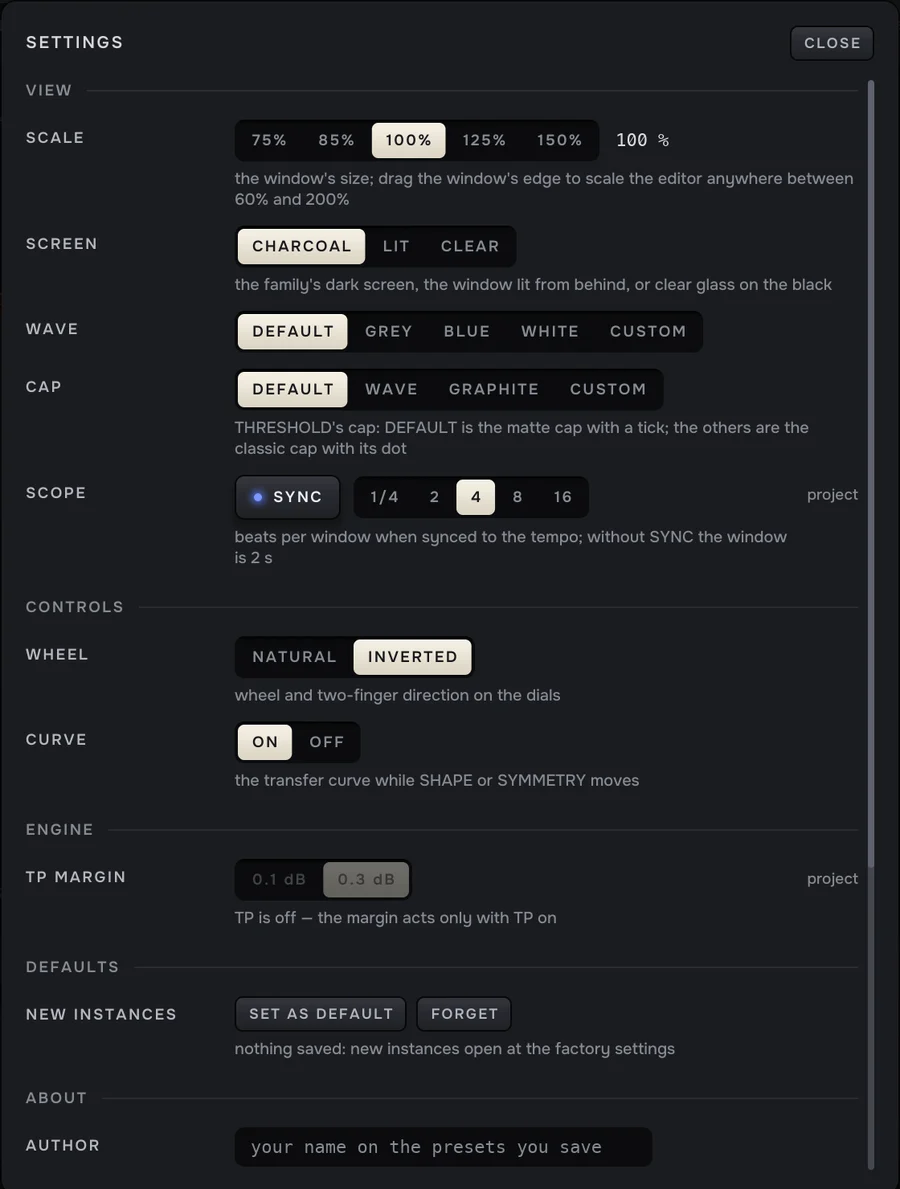
| Row | Choices | What it sets |
|---|---|---|
| SCALE | 75 % · 85 % · 100 % · 125 % · 150 % | The editor's size. Dragging the window's edge scales it anywhere up to 200 %. |
| SCREEN | CHARCOAL · LIT · CLEAR | The display's look. |
| WAVE | DEFAULT · GREY · BLUE · WHITE · CUSTOM | The colour of the output trace and meter. |
| CAP | DEFAULT · WAVE · GRAPHITE · CUSTOM | The look of the THRESHOLD dial. |
| SCOPE (project) | SYNC and 1/4 · 2 · 4 · 8 · 16 beats | The time span of the history. Without SYNC it is 2 seconds. |
| WHEEL | NATURAL · INVERTED | Scroll direction on the dials. |
| CURVE | ON · OFF | Shows the clip curve briefly while SHAPE or SYMMETRY moves. |
| TP MARGIN (project) | 0.1 dB · 0.3 dB | How far under CEILING TP holds the true peak. Only changeable while TP is on. |
| NEW INSTANCES | SET AS DEFAULT · FORGET | SET AS DEFAULT makes the current settings the starting point for new instances; FORGET returns to the factory settings. |
| AUTHOR | Text | Your name on the presets you save, shared by every Techne plugin. |
| LICENSE | — | Opens the license card. |
| LATENCY | — | The latency Clipper is reporting now. |
| TRACE | ON · OFF | Writes a diagnostic log. Leave it off unless support asks for it. |
| FOLDERS | PRESETS · LOGS | Opens the presets or log folder. |
| BUILD | — | The plugin's version. |
| RESET VIEW SETTINGS | — | Returns the computer-wide view and control settings to their defaults. |
SET AS DEFAULT captures every control as it is, including BYPASS, MATCH, DELTA and the BANDS solos, so switch those off first. A saved project always opens with its own settings, whatever the default is.
Practical examples
Use these as starting points. Every source is different, so let the history, GR and your ears decide how far to go.
A single drum: snare or kick
- Goal: more level from a drum with peaks well above its body, without losing its attack.
- Try: CLIP. Lower THRESHOLD until the hits show 2–4 dB of GR. Keep SHAPE low for a firm clip. If the hit loses its crack, raise PUNCH, then the transient ATTACK.
- Listen for: the attack turning into a flat click, or the body thinning out. Use DELTA to hear what is being taken.
- Back off when: the drum sounds smaller with BYPASS off than on at matched loudness.
A drum bus
- Goal: a denser, louder drum bus where the kick doesn't drag the cymbals into distortion.
- Try: BANDS. Start with all DRIVE values at 0 and THRESHOLD a few dB down. Raise the LOW band's DRIVE to push the kick harder and lower the HIGH band's DRIVE to spare the cymbals; remember DRIVE also changes each band's level. Move the first split until the kick's weight sits in the LOW band.
- Alternative: CLIP with DETAIL on keeps the hats and cymbals out of the clip altogether.
- Listen for: a band that changes level when you solo and unsolo it, and any harshness around the split frequencies.
- Back off when: the kick's low end turns to buzz or the snare loses its tail.
A full mix or master
- Goal: a few dB of peak control on a dense mix without audible distortion.
- Try: SPECTRAL, starting from Mix Bus Peak Control or 128 Techno Master. Try WINDOW 1024 for finer low-end resolution. Raise ADAPT to let the ceiling follow where the overshoot is. If the low end gets soft or unsteady, lower the LOW region's DEPTH so the sub is clipped wideband.
- For delivery: switch TP on and keep CEILING and the TP MARGIN where your delivery spec needs them, then check the rendered file.
- Listen for: transients losing their edge (lower GATE so more hits are protected) and pumping in sustained material (shorten RELEASE).
- Back off when: DELTA starts carrying musical parts rather than just the tops of peaks.
Kick and 808 together
- Goal: clip the kick's peaks without flattening the 808's sustained sub.
- Try: Sub Heavy Peak Control as a starting point, or CLIP with EDGE raised a little so the clipping falls more on the kick's upper frequencies than on the sub.
- Listen for: the 808's pitch losing its body, or added buzz on the sub. ADDED in the CHANGE view rises when the clip is creating harmonics in the low end.
Installation
Requirements
| macOS | macOS 12 Monterey or later, Apple silicon and Intel |
| Windows | Windows 10 or 11, 64-bit (x64) |
| Formats | VST3, CLAP and Audio Unit (AU, macOS only) |
| Channels | Mono or stereo |
| Not supported | AAX, so Pro Tools can't load Clipper |
Installing
Download the installer for your system from the Clipper page (the demo) or from Account → Devices once you own it. The demo installer and the paid one are the same file: activation is what removes the demo's silences.
- macOS: the installer places the VST3, CLAP and AU versions in /Library/Audio/Plug-Ins (in the VST3, CLAP and Components folders).
- Windows: the installer places the VST3 and CLAP versions in C:\Program Files\Common Files (in the VST3 and CLAP folders).
Then rescan plugins in your host, or restart it. Clipper is listed as Clipper by Techne. Logic Pro and GarageBand use the Audio Unit; other hosts use the VST3 or CLAP version.
Techne Hub, the free desktop app, can install, activate and update your Techne plugins for you. See techne.fm/hub.
Uninstalling
- Windows: remove Techne Clipper like any other installed program.
- macOS: delete Techne Clipper.vst3, Techne Clipper.clap and Techne Clipper.component from the VST3, CLAP and Components folders in /Library/Audio/Plug-Ins. Techne Hub can also uninstall it.
Uninstalling doesn't free a machine on your license. Deactivate first (see below).
The demo and activation
The demo
Until it is activated, Clipper runs as a demo with every feature and no time limit. After the first minute of audio, the output goes silent for 5 seconds every minute, with short fades so the gaps don't click. The silences are applied to the output, so they are also in anything you render from an unactivated instance. Each instance keeps its own clock, counting the audio it has processed since it was loaded.
Activating
You need the email address you bought with and the license key from your order email. Your key is also on Account → Devices at techne.fm.
- Click DEMO in Clipper's header, or open SETTINGS → ABOUT → LICENSE.
- Enter the email address and the license key.
- Click ACTIVATE. Activation needs an internet connection.
Once activated, the light in the header turns green and the silences stop immediately. Techne Hub can activate Clipper for you instead, and instances already open pick that up within a few seconds.
One license covers up to five computers. A sixth activation is refused until you free one.
Moving to another computer
- In Clipper on the old computer, open the license card and click DEACTIVATE. This needs an internet connection.
- Or, if you no longer have that computer, go to Account → Devices at techne.fm and click Remove next to it.
Signing out of Techne Hub doesn't free a computer.
Working offline
Once activated, Clipper keeps working offline. It checks in with techne.fm when it loads and then about once an hour; if it can't reach the server, the license stays as it is. A computer removed on the Devices page returns to the demo the next time Clipper checks in.
Updates
New versions are available from Account → Devices at techne.fm. Download the installer and run it over the existing version. Techne Hub shows available updates and installs them when you click to update.
Your activation, your presets and your projects carry over to a new version. If a new version changes how existing settings sound, compare it with a bounce from the previous version before re-rendering finished work. The installed version is shown in SETTINGS → ABOUT → BUILD.
Troubleshooting
Clipper doesn't appear in my host
- Rescan plugins in the host, or restart it.
- Check that the host supports VST3, CLAP or AU. Pro Tools needs AAX, which Clipper doesn't offer.
- On Windows, Clipper is 64-bit (x64) only, and the host must be a 64-bit x64 application.
- On macOS, check the version: Clipper needs macOS 12 or later.
Activation fails
- "that key does not match this email": enter the email address you bought with and check the key for typing errors. This message appears for a wrong email and for a wrong key.
- "this license is already on its maximum number of machines": deactivate Clipper on a computer you no longer use, or remove that computer on Account → Devices.
- "could not reach techne.fm": activation and deactivation need an internet connection. Check the connection and try again.
If it still fails, email support@techne.fm with your order email.
The audio drops out for a few seconds every minute
That is the demo. Activate Clipper to remove it.
The level jumps when I change THRESHOLD
That is LINK: it raises the output by the amount you lower THRESHOLD. Switch LINK off to set the output level yourself with OUTPUT.
The output is louder than CEILING on my meter
- With WALL on and TP off, sample peaks are held at CEILING but true peaks can be higher. Switch on TP if you need a true-peak limit.
- MATCH comes after WALL. Switch MATCH off before measuring or rendering.
- ATTACK, SUSTAIN and DETAIL can add level after the clip; WALL and TP still hold the final output.
It sounds distorted or harsh
- Raise THRESHOLD for less clipping, and watch GR: the more reduction, the more audible the clipping.
- Harshness in the highs on bright material: raise oversampling, keep AA on, or switch DETAIL on.
- Low-end buzz: raise EDGE a little, use BANDS to clip the low band less, or in SPECTRAL lower the LOW region's DEPTH.
CPU use is high
Lower the oversampling, switch TP off where you don't need a true-peak limit, or use CLIP instead of BANDS or SPECTRAL. The CPU section has more.
The audio cuts out briefly when I change a setting
Changing the engine into or out of SPECTRAL, WINDOW, oversampling, AA or TP changes the plugin's latency, and Clipper fades out and back in while it does. Make those changes while stopped.
Some controls are missing
The editor is in COMPACT. Click EXPAND, then ADVANCED for the drawer.
Keyboard problems in GarageBand
In GarageBand, once the plugin window has been clicked it keeps the space bar and typed letters, and pressing Return after typing a value can restart the song. This is a known issue in this version, caused by the way GarageBand hosts plugins in a separate process. Other hosts are unaffected.
Questions
How is a clipper different from a limiter?
This is general audio background, not specific to Clipper. A limiter turns the whole signal down for a short time when a peak arrives, then lets it back up, so everything playing at that moment gets quieter with the peak. A clipper doesn't ride the gain. It changes only the part of the waveform above the threshold, as it happens, so it doesn't pump the way a limiter can. It also means a clipper adds harmonics, which a limiter mostly avoids. Clipper's CATCH and TP stages are limiters, used only as safety stages around the clip.
How do I compare the processed and unprocessed sound fairly?
Louder almost always sounds better at first, so compare at equal loudness: switch MATCH on and toggle BYPASS. DELTA lets you hear exactly what the processing is taking. Switch MATCH off before rendering.
Does Clipper work on mono tracks?
Yes, on mono and stereo tracks. It has no sidechain input and no mid/side mode.
Does a bounce sound the same as playback?
Yes. Clipper processes audio the same way in realtime and offline. An unactivated demo puts its silences into a bounce too.
Why is SHAPE dimmed in BANDS?
Each band in BANDS has its own SHAPE, in ADVANCED → BANDS. The main SHAPE keeps its value for when you switch back.
Why does TP MARGIN not respond?
TP MARGIN can only be changed while TP is on.
Can I use Clipper in Pro Tools?
Not at the moment: Clipper doesn't come in AAX format.
Support
For help with installation, activation or a problem with the plugin, email support@techne.fm or use the contact page. Include your host, its version, your operating system and the version shown in SETTINGS → ABOUT → BUILD.
The demo is the trial. For refunds, see the refund policy. The plugin's license terms are in the Software License Agreement.